Transit Gateway Attachment
创建 Transit Gateway Attachment
-
在AWS管理控制台中,选择“Sevice”,然后选择“ VPC”。 或者点击 https://us-east-2.console.aws.amazon.com/vpc/home?region=us-east-2 进入 VPC Console。
-
从左侧菜单中,向下滚动并选择** Transit Gateway Attments**。

-
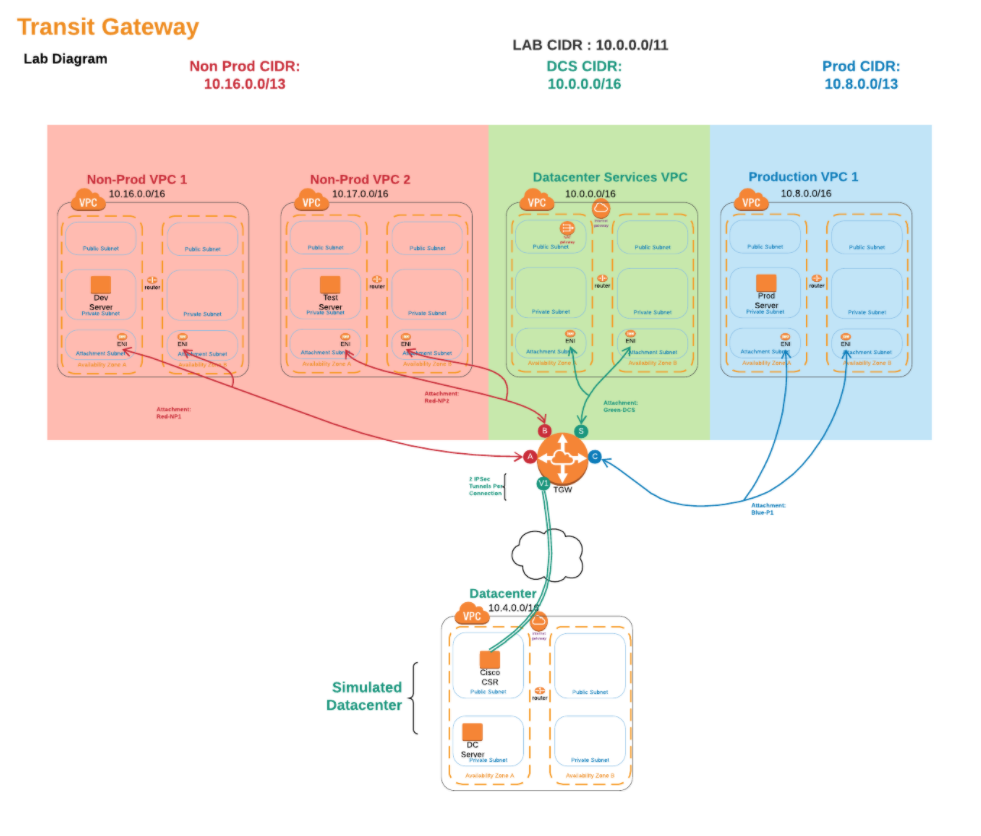
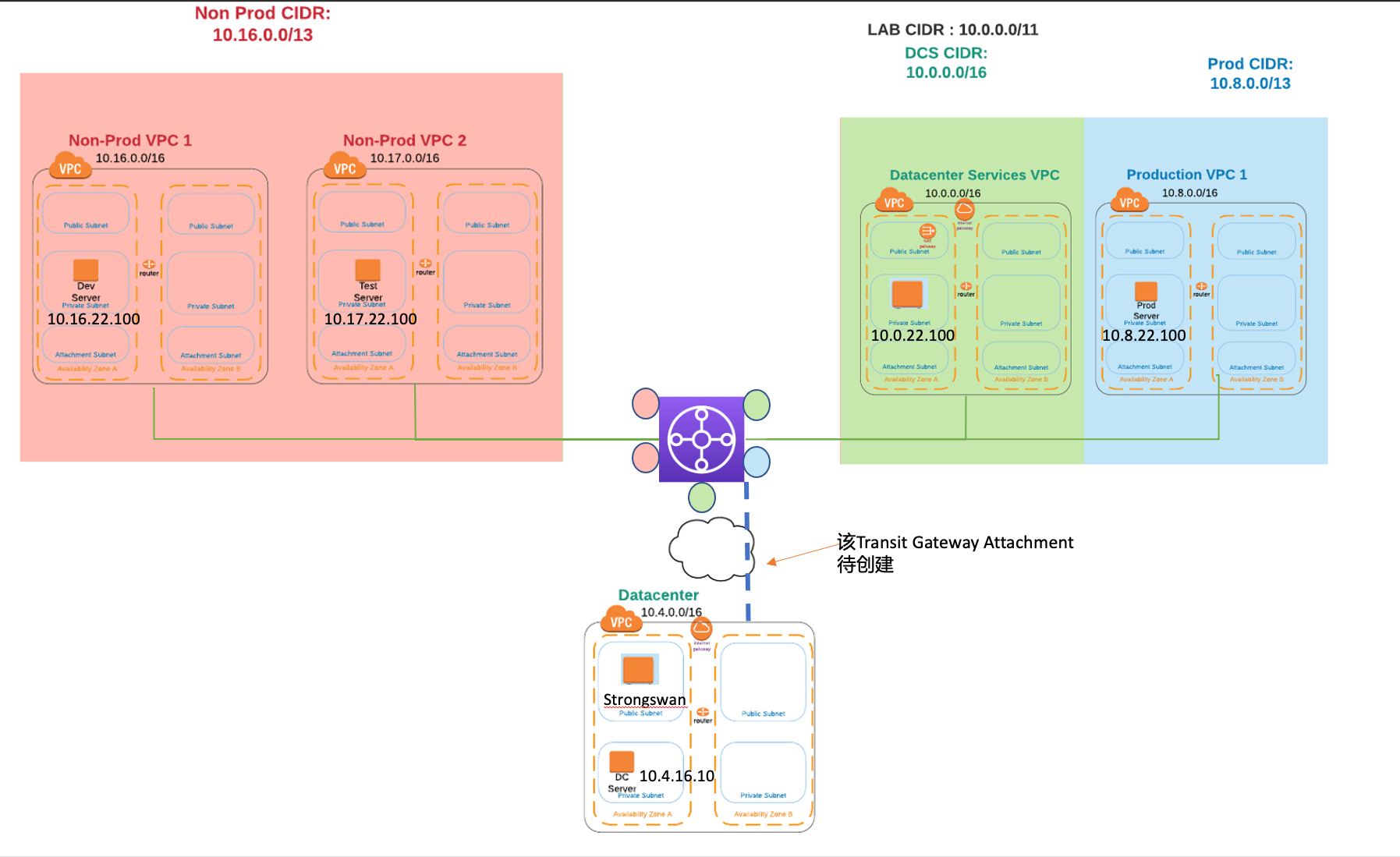
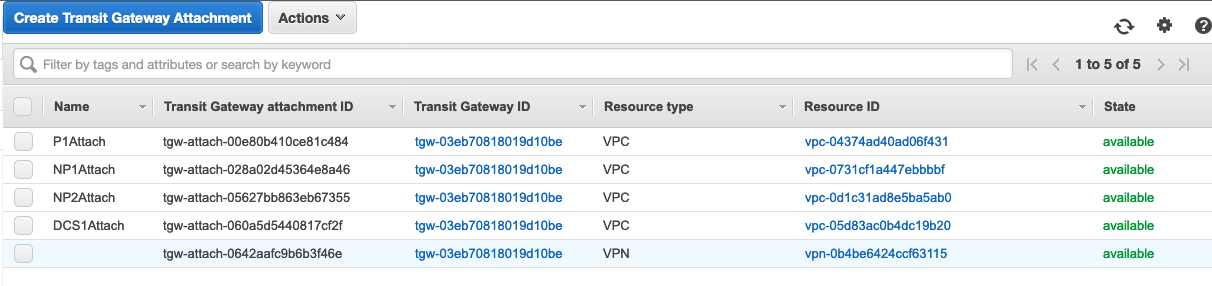
您将看到列出的VPC attachment, 已经连接到了 Production VPC1, Non-Prod VPC1, Non-Prod VPC2, 及 DataCenterService VPC.
但还没没有连接到 Datacenter VPC (如下图中的蓝色虚线所示), 需要我们手工创建 VPC attachment。
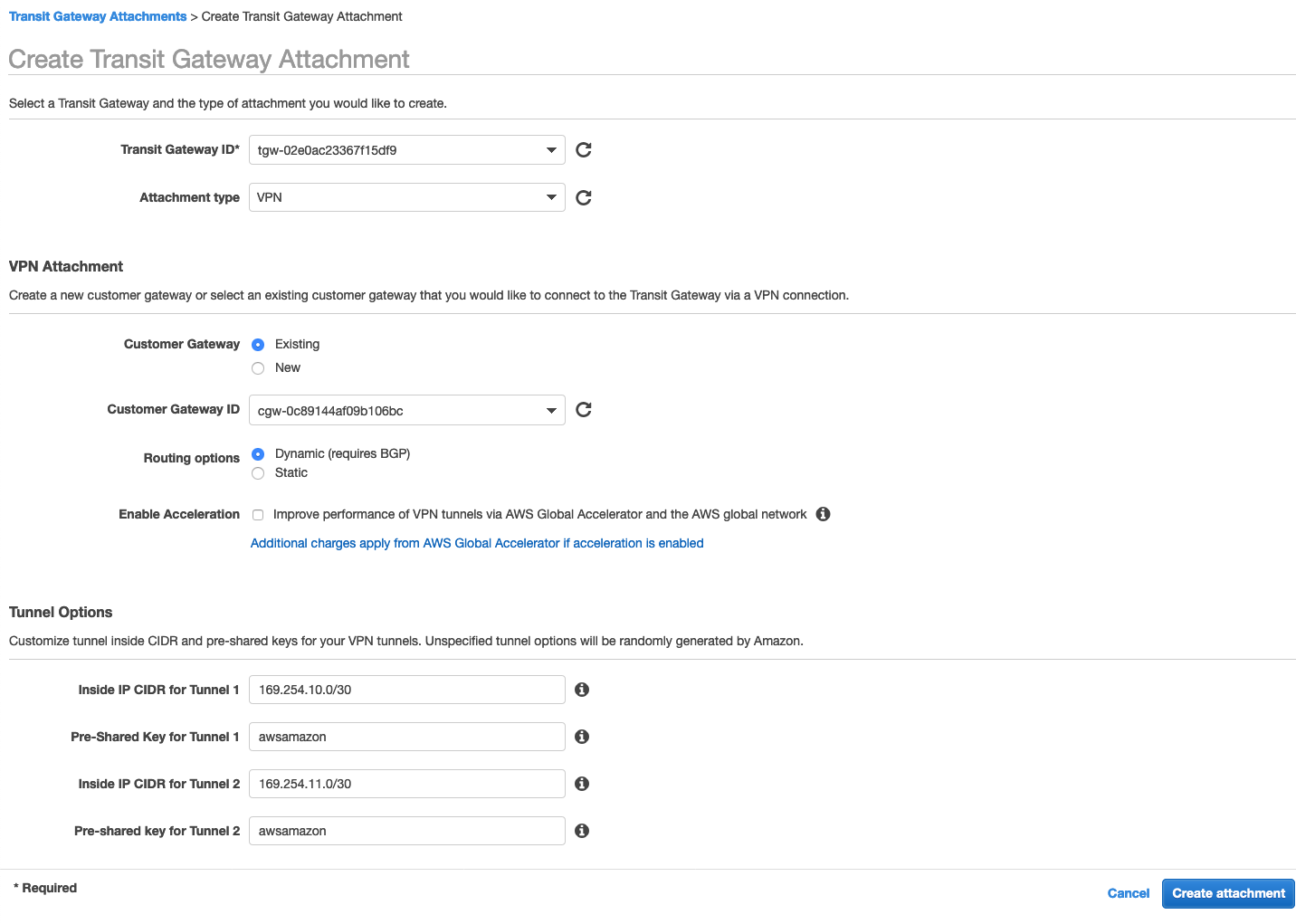
- 点击 “Create Transit Gateway Attachment” 按钮,填写“Create Transit Gateway Attachment”表格。信息如下所示:
-
Transit Gateway ID, 选择 Name tag 是 tgw 的 Trainsit gateway。
-
Attachment Type,选择 VPN。
-
Customer Gateway(CGW),选择Existing。
-
Customer Gateway ID, 选择 Name tag 是 DC1-CGW 的 Customer gateway。
-
Routing options,选择 “Dynamic(requires BGP)”。
-
Enable Acceleration 保持 非选择 选择状态。
-
Inside IP CIDR for Tunnel 1, 输入
169.254.10.0/30 -
Pre-Shared Key for Tunnel 1, 输入
awsamazon -
Inside IP CIDR for Tunnel 2, 输入
169.254.11.0/30 -
Pre-Shared Key for Tunnel 2, 输入
awsamazon
输入完成后,如下图所示
-
点击 Create attachment 创建 Trainsit gateway attachment.
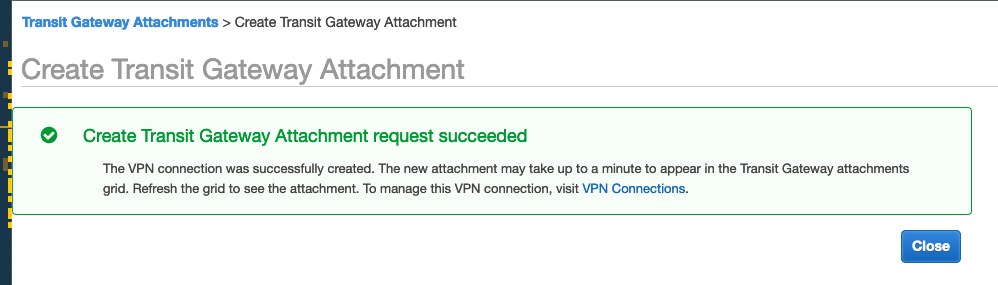 完成后点击 “close” 按钮。
 -
选择菜单 Transit Gateway Attachments. 我们需要确保 Transit gateway attachment 的状态是available, 而不是pending. 如果是 pending 的状态,请稍等片刻并点击刷新按钮。
修改 Transit Gateway Route Tables - Green Route Table
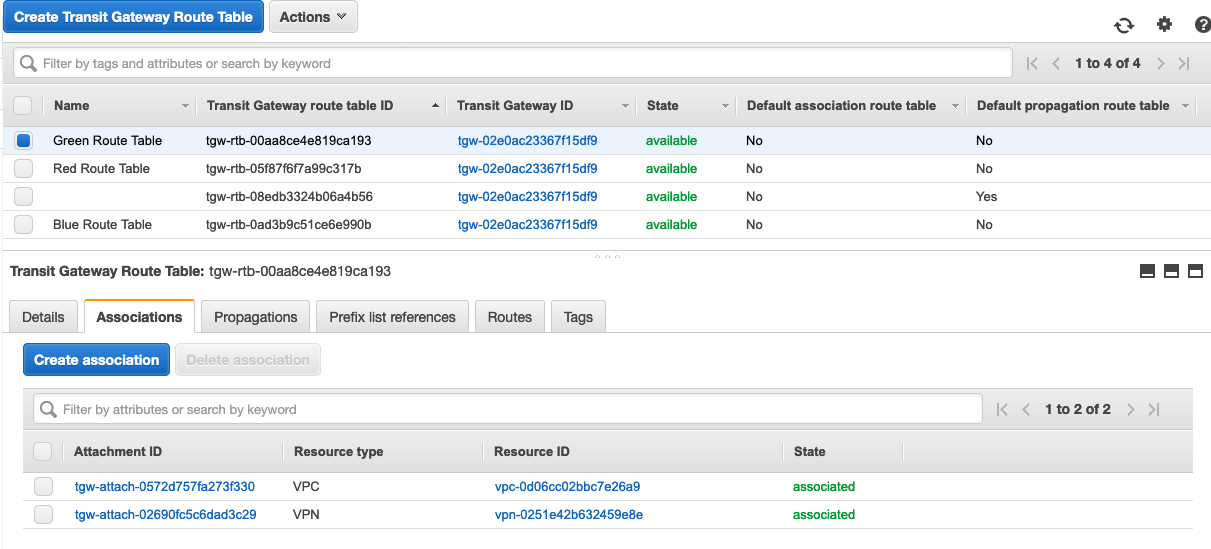
1.从左侧的菜单中选择“Transit Gateway Route Tables”。从主面板的表中选择 [Green Route Table]。然后点击 [Associations] 标签。Associations 意味着从外部流向Transit网关的流量将使用此路由表来了解数据包在通过TGW路由后的去向。
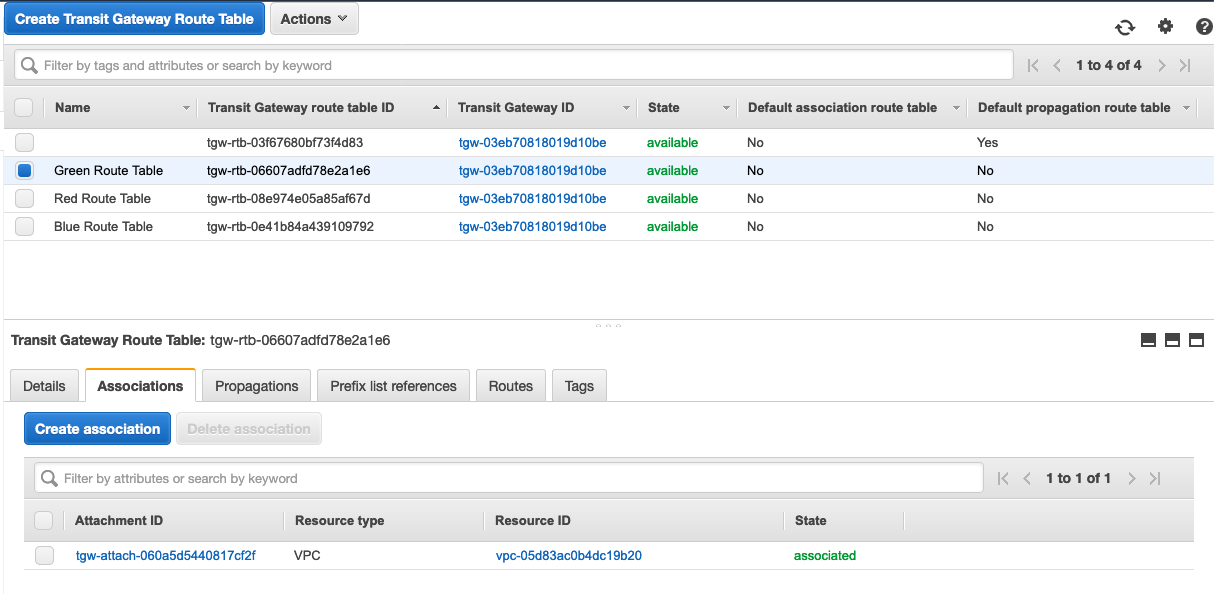
在“Green Route Table”中,我们已经有了一个attachment,即“Datacenter Services VPC”。 在“Associations”标签中单击“create association”。从下拉列表中,选择 resource type 是 VPN。
- note:它应该是列表中唯一“association route table” 值为空的记录 。
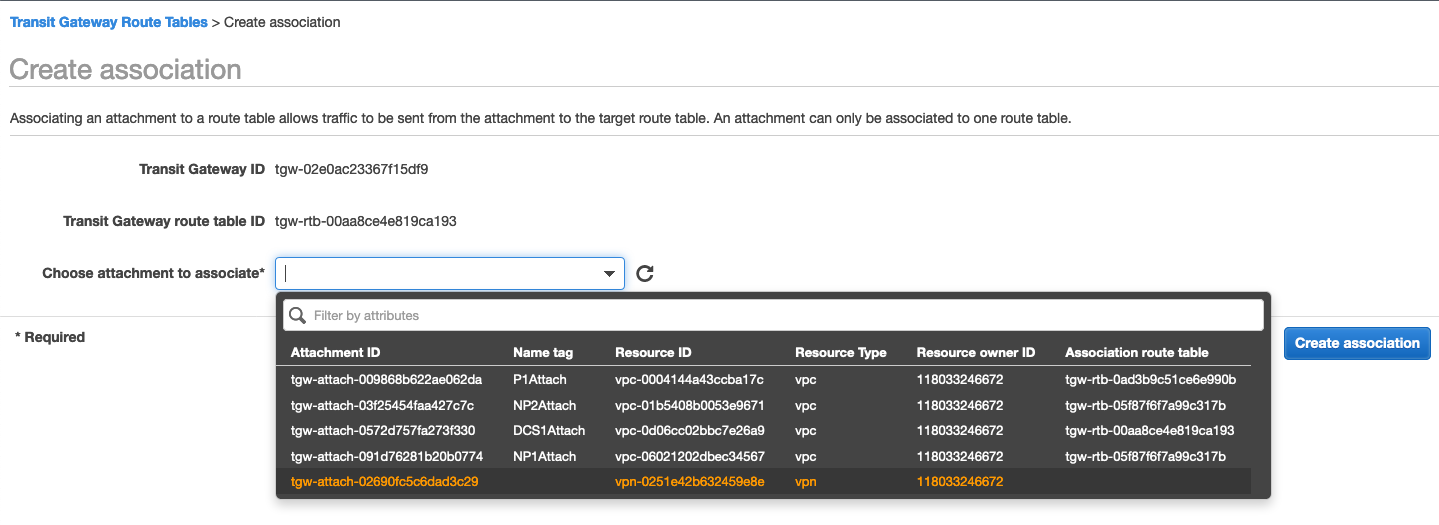 单击[create association”。]
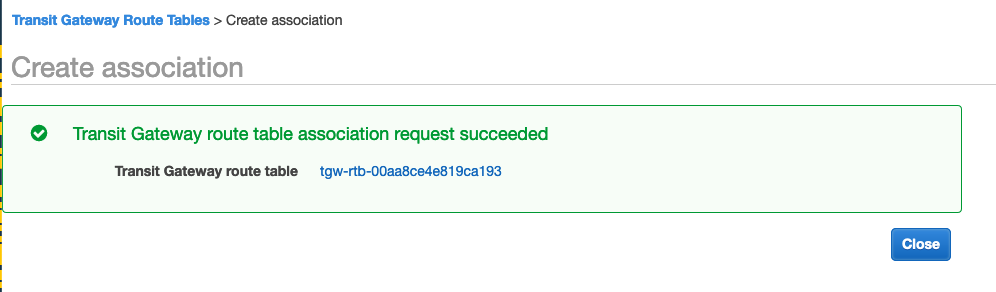 点击 “close” 后,新的 association 已经创建并 associated.
- 在“Transit Gateway Route Tables”中,查看“Propagations”选项卡。动态资源会被加入到路由表中。一个attachment可以传播到多个路由表。对于DataCenter VPC,我们希望其中的路由传播到所有路由表,以便与每个路由表关联的VPC可以路由回到DataCenter VPC。
让我们从“Green Route Table”开始。我们可以看到所有VPC都在将其CIDR传播到路由表。由于“DataCenterService VPC”也与此路由表相关联,因此我们需要将VPN路由传播到“Green Route Table”。
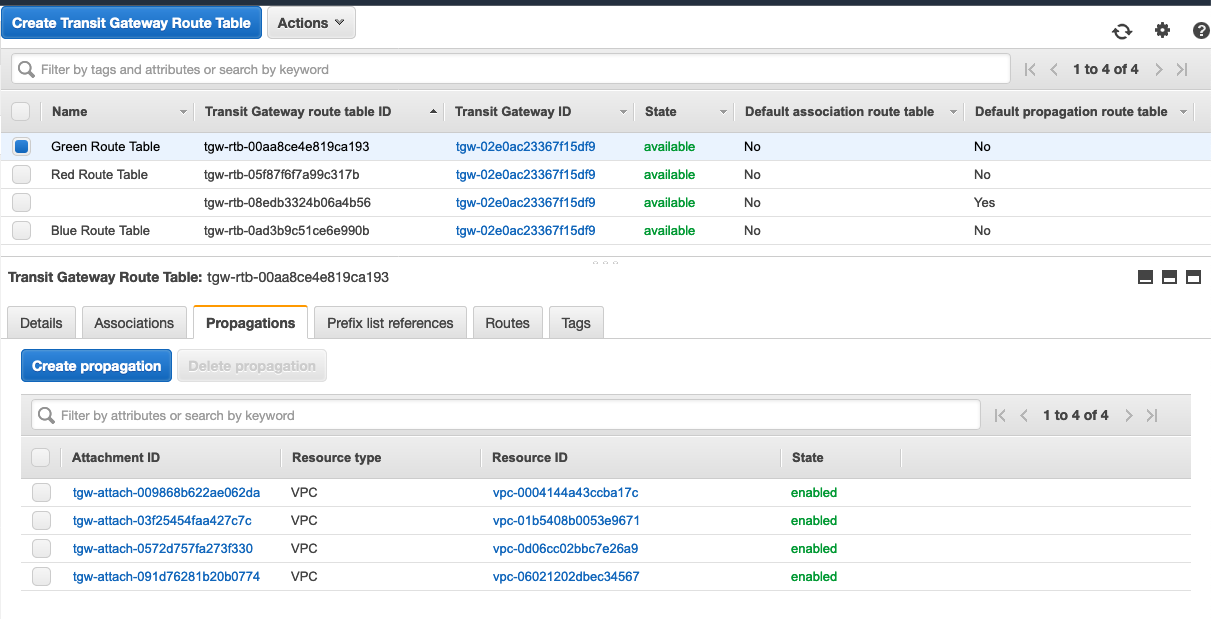
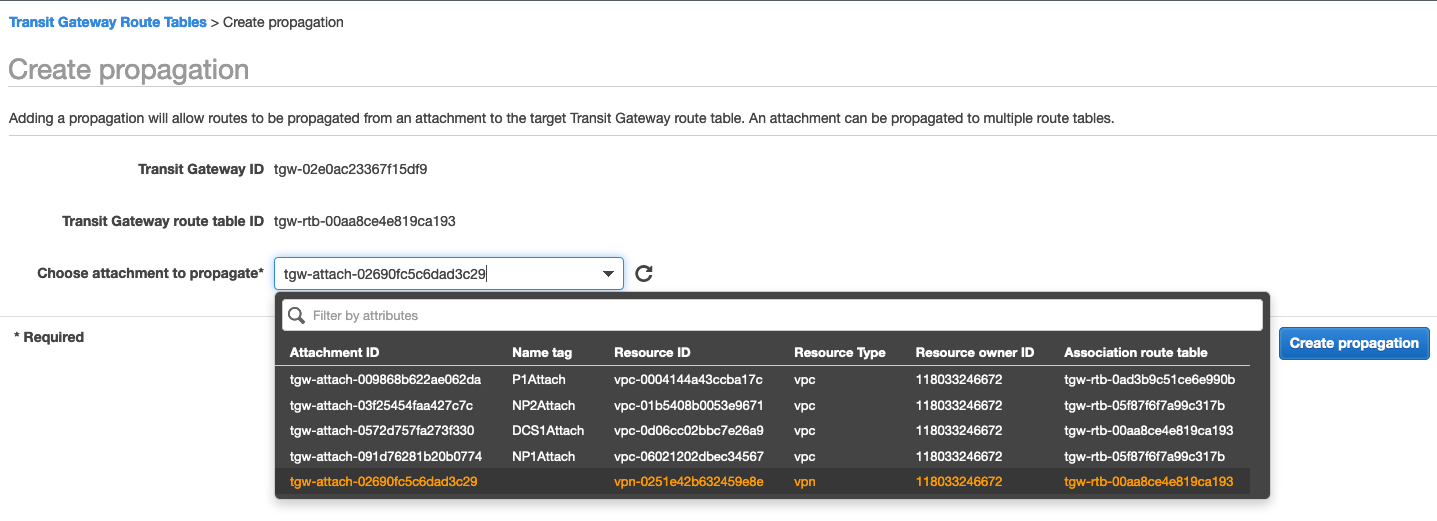
3.单击“Create propagation”,选择VPN(先前由您命名)Attachment,然后单击“Create propagation”。在下拉框 Choose attachment to propagate* 中选择 Resouce type 是 VPN 的 attacment。
 点击 “close"
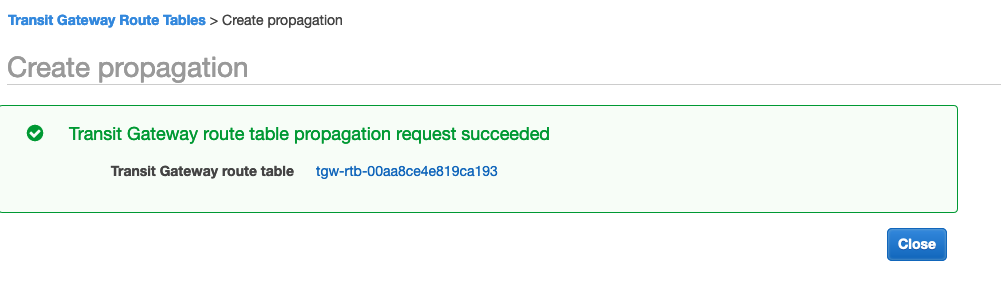
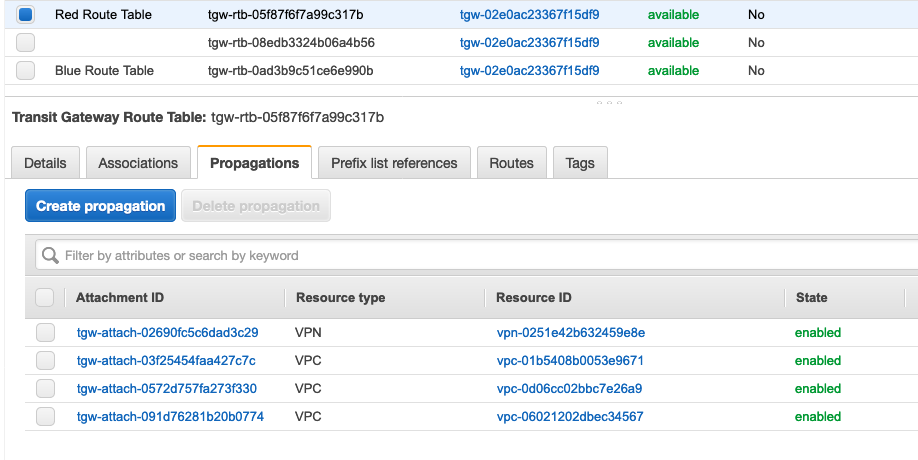
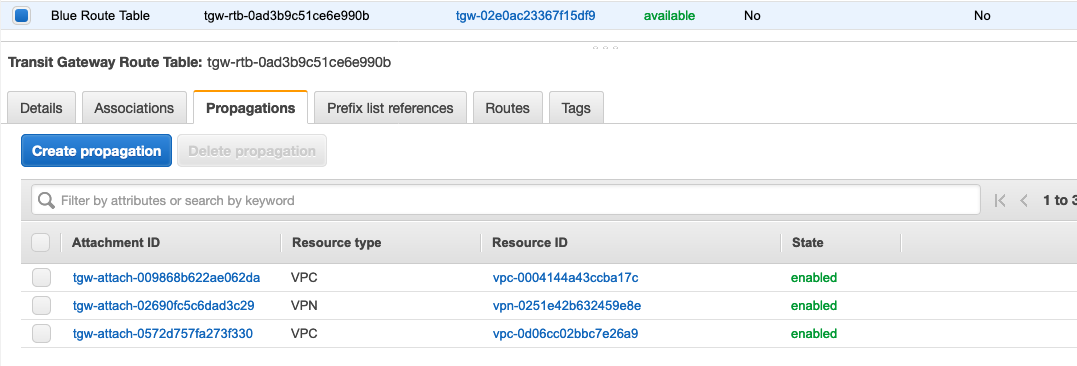
4.针对 对“Red Route Table”和“Blue Route Table”,在在“Propagations”选项卡上,重复上述步骤。
确保 “Red Route Table” 已经成功加入 Propagations. 如下图所示。
 确保 “Blue Route Table”,已经成功加入 Propagations.如下图所示。
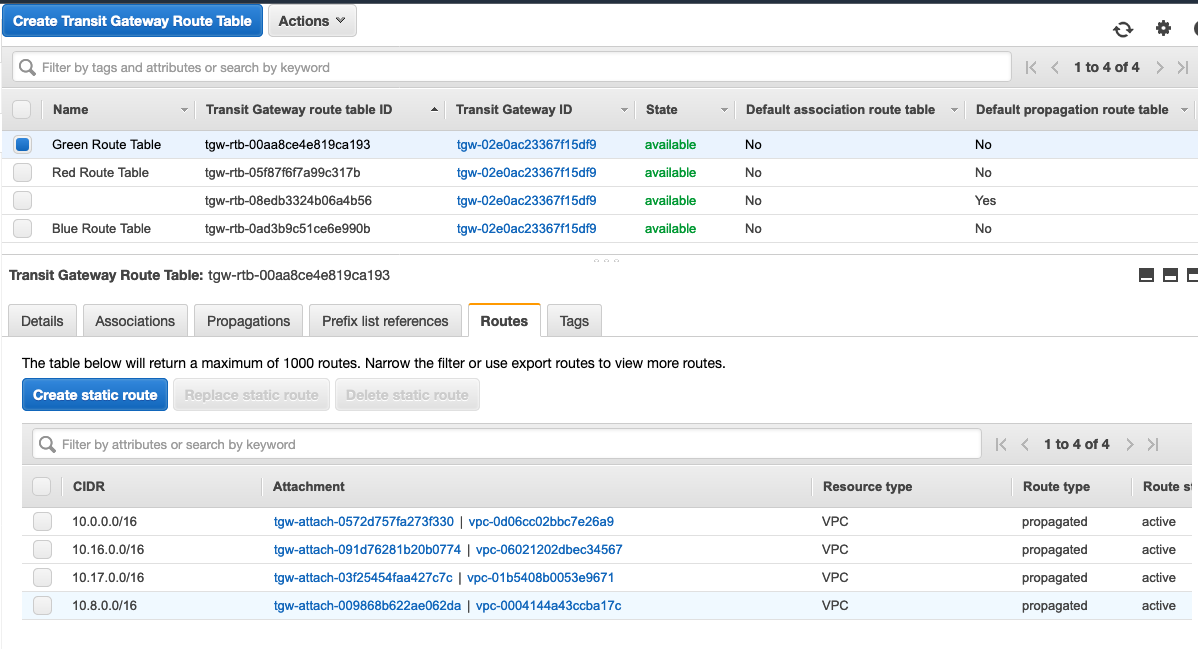
5.查看每个路由表,并注意“Route”选项卡。您可以看到传播的路由,以及由CloudFormation模板为您创建的静态路由表。这是默认路由(0.0.0.0/0),它将把发往Internet的流量引导到 DatacenterServices VPC,并最终通过该VPC中的NAT网关。
例如 Green Route Table 中的 Routes 选项, 其中
完成以上步骤,已经完成各个 VPC 以及 VPN 同 TGW 的连通。
当前环境如下